
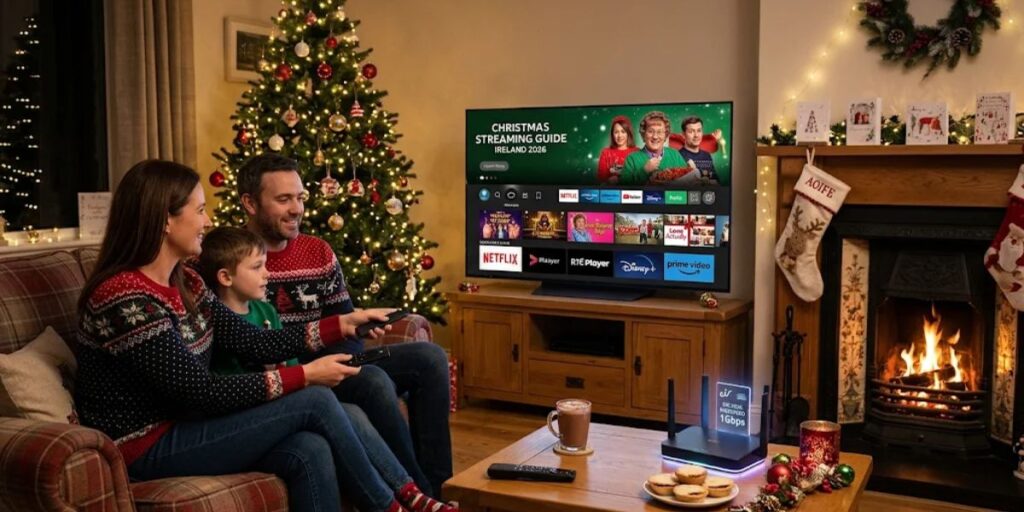
Christmas is a time when families spend more evenings at home, catch up on their favorite programmes and enjoy films together. Whether you are planning a quiet movie night or setting up the television for family visits, having your streaming setup ready can make the holidays much easier.
For households in Ireland, a little preparation before Christmas can help avoid common problems such as slow-loading apps, Wi-Fi interruptions, outdated software and remote-control issues.
This Christmas Streaming Guide Ireland 2026 covers practical ways to prepare your Smart TV, Firestick and home internet connection before the festive season. You do not need to buy a new television or expensive equipment to improve your setup. In many cases, a few simple checks are enough.
1. Check Your Smart TV Before Christmas
If you mainly watch content through a Smart TV, start by checking that everything is working properly. Leaving these checks until Christmas Eve can be frustrating, particularly if your television needs a software update or an app has stopped working.
Start with these basic steps:
- Check your internet connection: Open a streaming app and play a short video to see whether it loads smoothly.
- Update your TV software: Look in your television’s settings for a software or firmware update.
- Review installed apps: Remove apps you no longer use if your TV is running low on storage.
- Check your remote: Replace weak batteries and make sure all buttons are responding.
- Test the HDMI connections: If you use an external streaming device, check that the correct HDMI input is selected.
It is also worth opening the apps you regularly use and checking that you can sign in. If a password needs resetting, sorting it out in advance is much easier than doing it when everyone is waiting to watch something.
Is Your Older TV Still Suitable for Streaming?
An older television does not automatically need replacing. If it has an HDMI port but lacks some of the apps you want, a compatible streaming device may provide another way to access them.
Before buying anything, check which apps are supported by the device and whether it works with your television. Also consider the screen resolution. A 4K streaming device will not turn an HD television into a 4K screen.
2. Prepare Your Firestick for Holiday Viewing
Amazon Fire TV devices are a familiar choice in many homes because they connect directly to a television’s HDMI port and provide access to compatible streaming apps.
If you already use a Firestick, take a few minutes to check it before the busy holiday period.
A simple Firestick preparation checklist:
- Restart the device: Restarting can help clear temporary issues and refresh its connection.
- Check for updates: Open the settings menu and look for available software updates.
- Update your apps: Make sure the apps you use are running their latest available versions.
- Check available storage: Remove applications you no longer need if storage space is limited.
- Test the remote: Check the batteries and make sure the remote connects properly.
- Review your Wi-Fi connection: Test playback in the room where the television is located.
One important point: not every Fire TV model has exactly the same software or app support. If you are buying a new device, check the exact model and confirm that the apps you need are available for it.
3. Check Your Internet Speed for Christmas Streaming
A reliable internet connection is one of the most important parts of a smooth streaming experience. During Christmas, several people in the same household may be using the internet at once.
For example, someone might be watching a film in the living room while another person is playing an online game or making a video call. These activities all share the available connection.
According to Ireland’s communications regulator, ComReg, typical estimated download speeds for video streaming are:
| Streaming activity | Suggested download speed |
| HD video streaming | 5–10 Mbps |
| Ultra HD video streaming | 25–35 Mbps |
These are general estimates, not a guarantee of performance. The actual speed you need can depend on the streaming service, video quality and number of connected devices.
How to Test Your Internet Connection
You do not need technical knowledge to check your broadband speed.
- Connect your phone or laptop to your home Wi-Fi.
- Open a reputable internet speed-testing website.
- Run the test while you are in the same room as your television.
- Note the download speed and check whether it is consistent.
- If possible, repeat the test at a different time of day.
Testing near your television is useful because the speed available in one room may be different from the speed near your router.
4. Improve Wi-Fi Signal Around Your Television
Sometimes the broadband package is not the main problem. Your router may provide a good connection in one part of the house but a weaker signal in the room where you watch television.
This can happen when the router is placed behind furniture, inside a cupboard or far away from the living room.
Here are some practical ways to improve Wi-Fi coverage:
Place the Router in a Better Position
Try to keep your router in a central, open location rather than hiding it behind a television or inside a cabinet. Walls, furniture and other obstacles can affect the signal.
Reduce Unnecessary Network Traffic
If several devices are downloading large files or updating software, your connection may become busy. Schedule large downloads for another time if you are planning to stream something important.
Consider a Wired Connection
If your streaming device or television supports Ethernet, a cable connection may provide more consistent performance than Wi-Fi. Check the device’s connection options before purchasing an adapter.
Check Your Wi-Fi at Different Times
Internet performance can change throughout the day. If streaming works well in the morning but struggles during the evening, compare your speed at both times.
A small change in router position can sometimes make a noticeable difference without requiring a new broadband package.
5. Organise Your Streaming Apps Before the Holidays
When several family members use the same television, finding the right app can become surprisingly time-consuming. A little organisation can make the experience easier for everyone.
Start by checking which apps are already installed on your Smart TV or streaming device. Keep the services you regularly use easy to find and remove anything unnecessary if storage is limited.
You can also:
- Move frequently used apps to the front of your device’s home screen, where supported.
- Check that your account details are correct.
- Review subscription renewal dates.
- Make sure parental controls are set appropriately.
- Confirm that the apps you want are compatible with your device.
Remember to download applications from official app stores and use services that have the appropriate rights to provide their content.
6. Plan Your Christmas Viewing Without Last-Minute Stress
A good viewing experience is not only about internet speed or equipment. It is also about making sure everyone can find something suitable to watch.
Before Christmas, consider the viewing habits of your household. Some people may prefer films, while others enjoy documentaries, children’s programmes or live television.
A simple plan can help:
- Make a list of the films or programmes your family wants to watch.
- Check which services provide the content you are interested in.
- Confirm whether the content is included in an existing subscription or requires an additional payment.
- Check age ratings and parental controls for family viewing.
- Test playback before inviting everyone to sit down.
You do not need to subscribe to several new services just because Christmas is approaching. Review what you already have and decide whether anything is genuinely missing.
7. Common Streaming Problems to Check Before Christmas
A problem that seems small during an ordinary evening can become annoying when the whole family is ready to watch something.
The good news is that many common issues can be checked at home.
| Problem | What to check |
| Video keeps buffering | Test Wi-Fi strength and internet speed near the TV |
| App takes too long to open | Restart the app and check for updates |
| Black screen | Check the HDMI input, cable and device connection |
| Remote is not responding | Replace batteries and reconnect it if needed |
| Streaming device disconnects | Restart the device and check Wi-Fi stability |
| App keeps closing | Check available storage and install updates |
If an issue continues after basic troubleshooting, check the relevant device or app support information rather than repeatedly changing settings.
8. Protect Your Streaming Accounts During the Festive Season
Christmas is also a good time to review the security of your online accounts. If family members use different streaming services on the same television, make sure account access is managed carefully.
Keep these points in mind:
- Use strong, unique passwords for your accounts.
- Avoid sharing login details with people you do not trust.
- Do not install unknown applications from unofficial websites.
- Review payment methods and automatic renewals.
- Sign out of accounts on devices you no longer use.
- Keep your television and streaming device software updated.
Be careful with websites or messages offering unusually cheap subscriptions or asking for payment details without clear information about the service. Check the provider, terms and content rights before signing up.
Christmas Streaming Checklist for Irish Households
Before the holiday period begins, use this quick checklist to make sure your setup is ready.
- Smart TV software is up to date.
- Firestick or streaming device has been restarted.
- Frequently used apps open correctly.
- Account passwords and login details are available.
- Internet speed has been tested near the television.
- Wi-Fi signal is strong enough in the viewing room.
- HDMI cables and remote batteries are working.
- Parental controls are set where needed.
- Subscription renewals and payment details have been checked.
- Your preferred programmes and films are available through services you are authorised to use.
Completing these checks a few days before Christmas can help you avoid unnecessary interruptions when you want to relax.
Final Thoughts
Preparing your television for Christmas does not have to involve buying new equipment or changing your entire home entertainment setup. In many Irish households, checking the Smart TV, updating a Firestick, improving Wi-Fi placement and organising existing apps will be enough to make streaming more convenient.
The best approach is to test everything early rather than waiting until the holidays are underway. That way, you have time to fix small problems, check account details and make sure your preferred services work properly.
Whether you use a Smart TV, Firestick or another compatible streaming device, a little preparation can help make Christmas viewing more enjoyable for everyone.
Frequently Asked Questions
1. How can I prepare my Smart TV for Christmas?
Check that your television is connected to the internet, install available software updates, test your frequently used apps and make sure your remote works properly. It is also useful to check your account login details before the holidays.
2. Should I update my Firestick before Christmas?
Yes. Check for available device and app updates before the holiday period. Restarting your Firestick and checking its storage can also help you identify potential problems early.
3. What internet speed is suitable for Christmas streaming in Ireland?
ComReg gives general estimates of 5–10 Mbps for HD video streaming and 25–35 Mbps for Ultra HD streaming. Your household may need more capacity if several people stream at the same time.
4. Why does streaming buffer even when my broadband is fast?
The issue may be related to weak Wi-Fi coverage, network congestion, device performance or the streaming app itself. Test the connection near your television and try a wired connection if your equipment supports it.
5. Can I use a Firestick with an older television?
Many older televisions can work with a compatible Firestick if they have an available HDMI port. Check the device’s requirements and your television’s compatibility before buying.
6. Do I need a new Smart TV for Christmas streaming?
Not necessarily. If your current television works properly, you may be able to continue using it with its built-in apps or a compatible external streaming device.
7. When should I check my streaming setup before Christmas?
Ideally, check everything at least a few days before Christmas. This gives you time to update software, test your internet connection and resolve any device or account problems.