
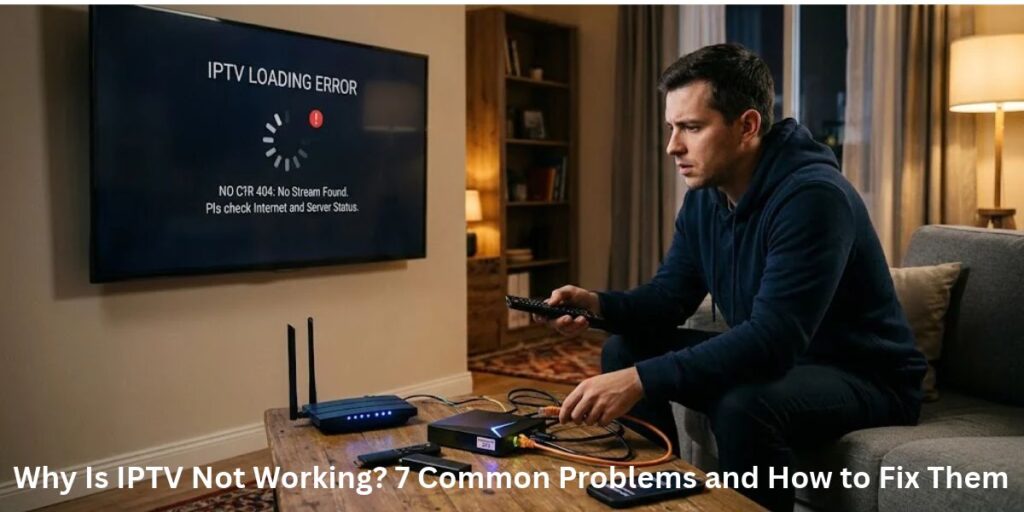
You sit down to watch your favorite programmed, open your IPTV app, and find that nothing is working as it should. Perhaps the app refuses to open, channels keep loading, or the screen stays blank even though your internet connection appears fine. It can be frustrating, especially when everything was working normally the day before.
The good news is that an IPTV problem does not always mean your television or internet connection is faulty. Sometimes the cause is a temporary app error, an expired login session, an incompatible device or an issue with the streaming service itself. Identifying the symptoms first can save you time and help you avoid changing settings unnecessarily.
In this guide, we explain seven common reasons IPTV may stop working and show you practical ways to troubleshoot them. Whether you watch through a Smart TV, streaming stick, set-top box or another compatible device, these steps can help you narrow down the cause.
Why Is IPTV Not Working?
IPTV relies on several things working together: an internet connection, a compatible device, a suitable app or player, and a source that can deliver the content. If any part of this setup develops a problem, playback may fail or certain features may stop working.
Before trying individual fixes, check what is actually happening. Does the app fail to open, are all channels unavailable, or does only one programme refuse to play? You should also test another internet-dependent app on the same device. If that app works normally, the issue may be limited to your IPTV app, account or content service rather than your entire internet connection.
Understanding these differences makes troubleshooting more effective because each symptom points towards a different possible cause.
1. Your Internet Connection Is Unstable
A working Wi-Fi symbol does not necessarily mean your internet connection is reliable enough for streaming. Your device may remain connected to the router while experiencing slow speeds, brief disconnections or an inconsistent connection to the internet. These problems can prevent an IPTV app from loading its content or maintaining playback.
Start by opening another streaming app or website on the same device. If other services are also struggling, the problem may be with your broadband connection or home network. You can then run a speed test and compare the results with your usual connection performance.
How to fix it:
- Restart your router according to the manufacturer’s instructions, then allow the connection to return fully.
- Move your streaming device closer to the router if the Wi-Fi signal is weak.
- Pause large downloads or other demanding internet activity while testing playback.
- Try a wired Ethernet connection if your device supports it.
- Check whether other devices in your home are experiencing the same issue.
If only IPTV has stopped working while other apps remain responsive, move on to the next checks rather than immediately upgrading your broadband package.
2. The IPTV App Is Frozen or Not Opening
Sometimes the problem is with the app rather than your internet connection. An app can freeze during startup, stop responding to the remote control or close unexpectedly. This may happen because of a temporary software error, outdated app version or limited resources on the device.
A full restart is often a sensible first step. Close the app completely instead of simply returning to the home screen, then open it again. If the problem continues, restart your television or streaming device and check whether an update is available through the device’s official app store or settings.
How to fix it:
- Close the IPTV app completely.
- Restart the device and open the app again.
- Check for available updates from an official source.
- If the problem remains, check the app developer’s troubleshooting instructions.
- Consider clearing the app cache if your device supports this option.
Be careful when clearing app data or reinstalling software. These actions can remove saved settings or login details, so make sure you know how to restore them before proceeding. Only install apps from sources you trust.
3. Your Login Details or Subscription Access Are Not Working
If the app opens normally but displays a login error, refuses to load your playlist or reports that access is unavailable, the issue may be related to your account or content source. Incorrect credentials, an expired session, a changed playlist address or an expired subscription can all affect access.
First, check the message displayed on the screen. If it refers to authentication or account access, verify your login details carefully and check for any service notifications. Avoid repeatedly entering different passwords or changing settings without understanding the error.
How to fix it:
- Confirm that your username, password or playlist details are correct.
- Check whether your account or subscription is still active.
- Look for service notifications about maintenance or account changes.
- Contact the provider through its official support channel if your details appear correct.
- Avoid sharing passwords or payment information with unverified support accounts.
If your account is active but access still fails, the provider may need to investigate the issue. Reinstalling the app is unlikely to resolve an account-side problem by itself.
4. IPTV Channels Are Not Loading
You may be able to open the app and browse its channel list but find that selecting a channel produces an error or leaves the player loading. This can happen when a particular stream is unavailable, the content source has changed or the service is experiencing a temporary technical problem.
Check whether the issue affects one channel or the entire service. If only one stream fails, the problem may be specific to that source. If every channel fails while other internet apps work normally, investigate the IPTV app, account and provider before changing your network settings.
How to fix it:
- Test another channel or programme that you are authorised to access.
- Check whether the provider has announced maintenance or an outage.
- Restart the app and try again after a short wait.
- Confirm that your account and content source are still valid.
- Contact the provider if multiple channels remain unavailable.
A channel list appearing on screen does not guarantee that every listed stream is currently available. The app may display saved channel information even when the source itself cannot deliver the content.
5. Your TV or Streaming Device Is Not Compatible
An IPTV app may work on one device but fail on another because of differences in operating systems, software versions, hardware capabilities or app support. This can happen with older Smart TVs, streaming sticks and set-top boxes that no longer support a particular app version.
If you have recently changed devices or updated the operating system, check whether the app supports your exact model. Also make sure your device has enough free storage and is running supported software. Installing an app successfully does not always mean that every feature will work properly.
How to fix it:
- Check the app’s official compatibility requirements.
- Install available system updates from the device manufacturer.
- Free up storage if your device is nearly full.
- Restart the device after updating software.
- Use a supported alternative device if the app no longer supports your model.
If you are setting up a television for the first time, our IPTV Setup Guide for 2026 explains general setup considerations for compatible devices.
6. The Screen Is Black or There Is No Picture
A black screen can be confusing because the app may appear to open correctly while the video itself remains invisible. In some cases, sound continues even though the picture does not appear. Possible causes include a playback error, an unsupported video format, an app issue or a problem with an HDMI connection.
Start with the simplest checks. If you use an external streaming device, make sure it is connected securely to the correct HDMI input. Test another video or channel and restart the app. If the issue affects several apps, check your television’s input settings and software as well.
How to fix it:
- Confirm that your television is using the correct HDMI input.
- Disconnect and reconnect an external streaming device safely.
- Test another supported stream to see whether the problem is content-specific.
- Restart the app and device.
- Check for official app or system updates.
If the screen remains black across several apps, the television, HDMI connection or device may need further investigation. If the issue occurs only with one stream, report that detail to the content provider.
7. The Streaming Service Is Experiencing a Technical Problem
Not every IPTV issue can be fixed from your home. A service may experience scheduled maintenance, temporary outages or problems affecting its streaming infrastructure. In these situations, your internet connection and device may be working correctly even though content remains unavailable.
Look for an official service-status message or contact the provider’s support team. Explain when the problem started, which device you use and whether all channels or only certain streams are affected. These details can help the provider determine whether the problem is local to your setup or related to its service.
How to check:
- Review official service notifications, if available.
- Test other internet apps on the same device.
- Check whether the issue affects multiple channels.
- Ask the provider whether a known outage or maintenance window is affecting playback.
- Wait for confirmation before making major changes to your device or network.
Avoid paying for a replacement subscription or additional equipment until you have a reasonable idea of what is causing the problem.
IPTV Not Working vs IPTV Buffering: What Is the Difference?
These problems can look similar, but they are not exactly the same. When IPTV is not working, the app may refuse to open, channels may be unavailable, login may fail or playback may not start at all. Buffering usually means the video starts playing but repeatedly pauses while the player waits for more data.
The distinction matters because the best troubleshooting steps are different. If the app cannot open or your login fails, checking account access and app compatibility makes more sense than focusing only on broadband speed. If the video plays but frequently pauses, investigating Wi-Fi stability and network congestion is a better starting point.
For persistent interruptions during playback, read our guide to Why Does IPTV Keep Buffering? 7 Simple Fixes for UK Viewers. It focuses specifically on buffering rather than the wider range of problems covered here.
How to Troubleshoot IPTV Without Making Things Worse
When several things go wrong at once, it can be tempting to reset every setting or reinstall all your apps. However, changing too many things together makes it harder to identify the actual cause and may remove settings that were working correctly.
Use a simple troubleshooting order:
- Identify the exact error or symptom.
- Test another internet app on the same device.
- Restart the affected app and device.
- Check your account, app version and device compatibility.
- Investigate the provider or content source if other checks pass.
- Contact official support if the problem persists.
Make one change at a time and test playback after each step. This approach helps you understand which action makes a difference instead of relying on guesswork.
Final Thoughts
When IPTV stops working, the cause could be your internet connection, a frozen app, account access, an unavailable channel, device compatibility or a temporary service problem. The quickest route to a solution is to identify the symptoms and test the most likely causes one by one.
Start with basic checks such as restarting the app, testing other internet services and confirming that your account and device are supported. If the issue appears to come from the provider, contact its official support team rather than repeatedly changing settings that may not be responsible.
With a structured approach, you can narrow down the problem, avoid unnecessary expenses and understand whether the issue is something you can resolve yourself or needs attention from the service provider.
Frequently Asked Questions
Why is IPTV not working even though my internet is fine?
Your internet connection may be working while the IPTV app, account, content source or provider is experiencing a separate problem. Test other apps on the same device, check your login details and see whether the issue affects one channel or the entire service.
Why does my IPTV app open but no channels play?
The app may be unable to access the content source, your account may need attention or the selected streams may be temporarily unavailable. Test another authorised stream and check for provider notifications before changing device settings.
Why is IPTV not working on my Smart TV?
Possible causes include an unsupported app version, an outdated television operating system, limited device resources or a network issue. Check compatibility, install available official updates and test another streaming app.
Can restarting my router fix IPTV problems?
It can help when the problem is caused by a temporary router or network issue. However, it will not normally resolve an incorrect password, an expired subscription, an unsupported app or an outage affecting the content provider.
Why does IPTV work on one device but not another?
The devices may use different software versions, apps, network connections or playback capabilities. Check that the service supports both devices and compare their connection quality before deciding which component needs attention.
Should I reinstall my IPTV app if it stops working?
Reinstallation may help if the app itself is corrupted or malfunctioning, but it should not be the first step for every issue. Restart the app and device, check for updates and make sure you have the correct login information before reinstalling. Reinstallation may remove saved settings.
When should I contact my IPTV provider?
Contact the provider if your account appears active but content remains unavailable, multiple streams fail, or the service reports a technical error that you cannot resolve. Include the device model, error message and approximate time the problem began.